
Get Ninja Software from Organization
This script retrieves software and device data for a specified organization from NinjaOne. It groups the software by name, publisher, and product code, aggregates associated device IDs and names, and then sorts the groups by device count in descending order. Finally, the script exports the results to a timestamped CSV file in the designated output folder.
# --------------------------------------------------
# Author: Gavin Stone (NinjaOne)
# Attribution: Luke Whitelock (NinjaOne) for his work on the Authentication Functions
# Date: 13th March 2025
# Description: This script retrieves software and device data for a specified organization from NinjaOne, groups the software by name, publisher, and product code, and aggregates associated device IDs and names. It then sorts the groups by the device count in descending order. Finally, the script exports the results to a timestamped CSV file in the designated output folder.
# Version: 1.0
# --------------------------------------------------

# User editable variables:
$NinjaOneInstance = 'app.ninjarmm.com' # Please replace with the region instance you login to (app.ninjarmm.com, us2.ninjarmm.com, eu.ninjarmm.com, ca.ninjarmm.com, oc.ninjarmm.com)
$NinjaOneClientId = 'INSERTCLIENTIDHERE'
$NinjaOneClientSecret = 'INSERTCLIENTSECRETHERE'
$UserInputtedOrg = "Enter the Organization Name Here"
$CSVOutputFolder = "C:\Temp" # Folder name where the CSV file will be saved - note the filename is generated automatically - this is just a folder

# Functions for Authentication
function Get-NinjaOneToken {
    [CmdletBinding()]
    param()

    if ($Script:NinjaOneInstance -and $Script:NinjaOneClientID -and $Script:NinjaOneClientSecret ) {
        if ($Script:NinjaTokenExpiry -and (Get-Date) -lt $Script:NinjaTokenExpiry) {
            return $Script:NinjaToken
        }
        else {

            if ($Script:NinjaOneRefreshToken) {
                $Body = @{
                    'grant_type'    = 'refresh_token'
                    'client_id'     = $Script:NinjaOneClientID
                    'client_secret' = $Script:NinjaOneClientSecret
                    'refresh_token' = $Script:NinjaOneRefreshToken
                }
            }
            else {

                $body = @{
                    grant_type    = 'client_credentials'
                    client_id     = $Script:NinjaOneClientID
                    client_secret = $Script:NinjaOneClientSecret
                    scope         = 'monitoring management'
                }
            }

            $token = Invoke-RestMethod -Uri "https://$($Script:NinjaOneInstance -replace '/ws','')/ws/oauth/token" -Method Post -Body $body -ContentType 'application/x-www-form-urlencoded' -UseBasicParsing

            $Script:NinjaTokenExpiry = (Get-Date).AddSeconds($Token.expires_in)
            $Script:NinjaToken = $token

            Write-Host 'Fetched New Token'
            return $token
        }
        else {
            Throw 'Please run Connect-NinjaOne first'
        }
    }

}

function Connect-NinjaOne {
    [CmdletBinding()]
    param (
        [Parameter(mandatory = $true)]
        $NinjaOneInstance,
        [Parameter(mandatory = $true)]
        $NinjaOneClientID,
        [Parameter(mandatory = $true)]
        $NinjaOneClientSecret,
        $NinjaOneRefreshToken
    )

    $Script:NinjaOneInstance = $NinjaOneInstance
    $Script:NinjaOneClientID = $NinjaOneClientID
    $Script:NinjaOneClientSecret = $NinjaOneClientSecret
    $Script:NinjaOneRefreshToken = $NinjaOneRefreshToken


    try {
        $Null = Get-NinjaOneToken -ea Stop
    }
    catch {
        Throw "Failed to Connect to NinjaOne: $_"
    }

}

function Invoke-NinjaOneRequest {
    param(
        $Method,
        $Body,
        $InputObject,
        $Path,
        $QueryParams,
        [Switch]$Paginate,
        [Switch]$AsArray
    )

    $Token = Get-NinjaOneToken

    if ($InputObject) {
        if ($AsArray) {
            $Body = $InputObject | ConvertTo-Json -depth 100
            if (($InputObject | Measure-Object).count -eq 1 ) {
                $Body = '[' + $Body + ']'
            }
        }
        else {
            $Body = $InputObject | ConvertTo-Json -depth 100
        }
    }

    try {
        if ($Method -in @('GET', 'DELETE')) {
            if ($Paginate) {

                $After = 0
                $PageSize = 1000
                $NinjaResult = do {
                    $Result = Invoke-WebRequest -uri "https://$($Script:NinjaOneInstance)/api/v2/$($Path)?pageSize=$PageSize&after=$After$(if ($QueryParams){"&$QueryParams"})" -Method $Method -Headers @{Authorization = "Bearer $($token.access_token)" } -ContentType 'application/json' -UseBasicParsing
                    $Result
                    $ResultCount = ($Result.id | Measure-Object -Maximum)
                    $After = $ResultCount.maximum

                } while ($ResultCount.count -eq $PageSize)
            }
            else {
                $NinjaResult = Invoke-WebRequest -uri "https://$($Script:NinjaOneInstance)/api/v2/$($Path)$(if ($QueryParams){"?$QueryParams"})" -Method $Method -Headers @{Authorization = "Bearer $($token.access_token)" } -ContentType 'application/json; charset=utf-8' -UseBasicParsing
            }

        }
        elseif ($Method -in @('PATCH', 'PUT', 'POST')) {
            $NinjaResult = Invoke-WebRequest -uri "https://$($Script:NinjaOneInstance)/api/v2/$($Path)$(if ($QueryParams){"?$QueryParams"})" -Method $Method -Headers @{Authorization = "Bearer $($token.access_token)" } -Body $Body -ContentType 'application/json; charset=utf-8' -UseBasicParsing
        }
        else {
            Throw 'Unknown Method'
        }
    }
    catch {
        Throw "Error Occured: $_"
    }

    try {
        return $NinjaResult.content | ConvertFrom-Json -ea stop
    }
    catch {
        return $NinjaResult.content
    }

}

# Connect to NinjaOne API
try {
    Connect-NinjaOne -NinjaOneInstance $NinjaOneInstance -NinjaOneClientID $NinjaOneClientId -NinjaOneClientSecret $NinjaOneClientSecret
}
catch {
    Write-Output "Failed to connect to NinjaOne API: $_"
    exit 1
}

# Get all Organizations from NinjaOne so we can lookup the Org Name and map it to an ID
try {
    $AllOrgs = Invoke-NinjaOneRequest -Method Get -Path "organizations"
}
catch {
    Throw "Failed to retrieve organizations: $_"
}

# Lookup the Organization ID based on the user-provided name
$OrgID = $AllOrgs | Where-Object { $_.name -eq $UserInputtedOrg } | Select-Object -ExpandProperty id

if (-not $OrgID) {
    Throw "Organization '$UserInputtedOrg' not found - exiting script"
}

# Retrieve Software for the specified Org
try {
    $SoftwarePath = "queries/software?df=org=$($OrgID)"
    $AllSoftwareForOrg = Invoke-NinjaOneRequest -Method Get -Path $SoftwarePath
}
catch {
    Throw "Failed to retrieve software for OrgID $($OrgID): $_"
}

if (-not $AllSoftwareForOrg -or -not $AllSoftwareForOrg.results) {
    Throw "No software results returned for organization ID $OrgID."
}

# Retrieve Devices for the specified Org
try {
    $DevicesPath = "devices?df=org=$($OrgID)"
    $AllDevicesForOrg = Invoke-NinjaOneRequest -Method Get -Path $DevicesPath
}
catch {
    Throw "Failed to retrieve devices for OrgID $($OrgID): $_"
}


# Build a lookup table (hash table) for deviceId to systemName
$deviceLookup = @{}
foreach ($device in $AllDevicesForOrg) {
    $deviceLookup[$device.id] = $device.systemName
}

# Group software objects by a unique combination of name, publisher, and productCode
$groupedResults = $AllSoftwareForOrg.results | Group-Object -Property name, publisher, productCode

# Build the final results with an efficient lookup for device names
$finalResults = $groupedResults | ForEach-Object {
    # Collect all device IDs in the current group
    $deviceIds = $_.Group | ForEach-Object { $_.deviceId }

    # Lookup the corresponding system names using the pre-built hash table
    $deviceNames = $deviceIds | ForEach-Object {
        if ($deviceLookup.ContainsKey($_)) {
            $deviceLookup[$_]
        }
    }

    # Create a custom object representing the grouped software details
    [PSCustomObject]@{
        name         = $_.Group[0].name
        publisher    = $_.Group[0].publisher
        productCode  = $_.Group[0].productCode
        deviceCount  = $_.Count
        deviceId     = $deviceIds -join ","
        deviceNames  = $deviceNames -join ","
    }
}

# Order final results by the deviceCount column in descending order
$finalResults = $finalResults | Sort-Object -Property deviceCount -Descending

# Create a timestamp in the desired format: "yyyy-MM-dd HH-mm"
$timestamp = Get-Date -Format "yyyy-MM-dd HH-mm"

# Build the output file name using the timestamp and organization name
$filename = "Software Inventory Export - $timestamp - $UserInputtedOrg.csv"

# Combine the CSV output folder and the filename to create a full path
$filepath = Join-Path -Path $CSVOutputFolder -ChildPath $filename

# Export the final results to CSV without type information
$FinalResults | Export-Csv -Path $filepath -NoTypeInformation

# Optionally, output the file path to the console for confirmation
Write-Output "CSV export complete: $filepath"🛠️ Get-NinjaSoftwareFromOrganization.ps1
📝 Overview
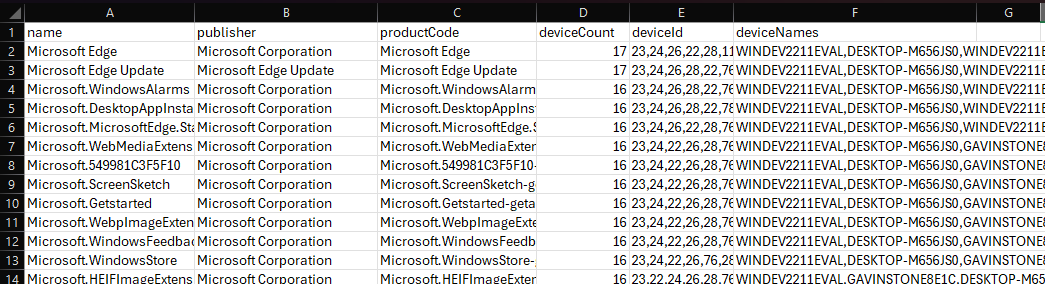
This script retrieves software and device data for a specified organization from NinjaOne. It groups the software by name, publisher, and product code, aggregates associated device IDs and names, and then sorts the groups by device count in descending order. Finally, the script exports the results to a timestamped CSV file in the designated output folder.
What does the output look like?
🙏 Attribution
- Author: Gavin Stone (NinjaOne)
- Attribution: Luke Whitelock (NinjaOne) for his work on the Authentication Functions
⚙️ Requirements / Prerequisites
- NinjaOne Instance: Replace
$NinjaOneInstancewith your region instance (e.g.,app.ninjarmm.com,us2.ninjarmm.com, etc.). - NinjaOne API Credentials: Set
$NinjaOneClientIdand$NinjaOneClientSecretwith your NinjaOne API credentials. - NinjaOne Organization: Set
$UserInputtedOrg: The name of the organization you want to retrieve data for. - CSV Folder to Save To: Set
$CSVOutputFolder: The folder path where the CSV file will be saved.
🔍 How It Works
- Authentication: The script authenticates with the NinjaOne API using the provided client ID and client secret.
- Organization Lookup: It retrieves all organizations from NinjaOne to map the specified organization name to its corresponding ID.
- Data Retrieval: Using the organization ID, the script fetches all devices and their associated software data.
- Data Processing: The software data is grouped by software name, publisher, and product code. For each group, associated device IDs and names are aggregated.
- Sorting: The grouped data is sorted in descending order based on the number of devices associated with each software group.
- Exporting Data: The final data is exported to a CSV file with a timestamped filename in the specified output folder.
🖥️ Usage
-
Run the Script: Execute the script in your PowerShell environment. For example:
.\Get-NinjaSoftwareFromOrganization.ps1