
Export Ninja Policy Structure
This PowerShell script connects to the NinjaOne API to retrieve and display the policy structure of your NinjaOne environment. It provides an overview of each policy, including the number of devices assigned and any devices with policy overrides. The output is presented in an interactive HTML file.
# --------------------------------------------------
# Author: Gavin Stone (NinjaOne)
# Status: Work in Progress / Draft / Testing
# Attribution: Luke Whitelock (NinjaOne) for his work on the Authentication Functions
# Date: 20th June 2024
# Description: Tries to be clever and get the policy structure from NinjaOne. Lists out an overview of the policy structure,
#              including the number of devices and snowflake devices for each policy. Also lists out the snowflake devices for each policy.
#              A snowflake device is a device that has a policy override applied to it.
#              The output is grouped by node class and the policies are listed in a hierarchical structure.
#              The output is written to a file in C:\Temp\NinjaOnePolicyOutput_<currentDateTime>.html
#              The output is also printed to the console.
# Version: 1.0 - Original Version
# Version: 2.0 - Added HTML output and improved formatting. Made interactive with collapsible tree view.
# Version: 2.0.1 - Removed hardcoded URL and used variable instead
# --------------------------------------------------

# User editable variables:
$NinjaOneInstance = '' # Please replace with the region instance you login to (app.ninjarmm.com, us2.ninjarmm.com, eu.ninjarmm.com, ca.ninjarmm.com, oc.ninjarmm.com)
$NinjaOneClientId = ''
$NinjaOneClientSecret = ''

# Functions for Authentication
function Get-NinjaOneToken {
    [CmdletBinding()]
    param()

    if ($Script:NinjaOneInstance -and $Script:NinjaOneClientID -and $Script:NinjaOneClientSecret ) {
        if ($Script:NinjaTokenExpiry -and (Get-Date) -lt $Script:NinjaTokenExpiry) {
            return $Script:NinjaToken
        }
        else {

            if ($Script:NinjaOneRefreshToken) {
                $Body = @{
                    'grant_type'    = 'refresh_token'
                    'client_id'     = $Script:NinjaOneClientID
                    'client_secret' = $Script:NinjaOneClientSecret
                    'refresh_token' = $Script:NinjaOneRefreshToken
                }
            }
            else {

                $body = @{
                    grant_type    = 'client_credentials'
                    client_id     = $Script:NinjaOneClientID
                    client_secret = $Script:NinjaOneClientSecret
                    scope         = 'monitoring management'
                }
            }

            $token = Invoke-RestMethod -Uri "https://$($Script:NinjaOneInstance -replace '/ws','')/ws/oauth/token" -Method Post -Body $body -ContentType 'application/x-www-form-urlencoded' -UseBasicParsing

            $Script:NinjaTokenExpiry = (Get-Date).AddSeconds($Token.expires_in)
            $Script:NinjaToken = $token

            Write-Host 'Fetched New Token'
            return $token
        }
        else {
            Throw 'Please run Connect-NinjaOne first'
        }
    }

}

function Connect-NinjaOne {
    [CmdletBinding()]
    param (
        [Parameter(mandatory = $true)]
        $NinjaOneInstance,
        [Parameter(mandatory = $true)]
        $NinjaOneClientID,
        [Parameter(mandatory = $true)]
        $NinjaOneClientSecret,
        $NinjaOneRefreshToken
    )

    $Script:NinjaOneInstance = $NinjaOneInstance
    $Script:NinjaOneClientID = $NinjaOneClientID
    $Script:NinjaOneClientSecret = $NinjaOneClientSecret
    $Script:NinjaOneRefreshToken = $NinjaOneRefreshToken


    try {
        $Null = Get-NinjaOneToken -ea Stop
    }
    catch {
        Throw "Failed to Connect to NinjaOne: $_"
    }

}

function Invoke-NinjaOneRequest {
    param(
        $Method,
        $Body,
        $InputObject,
        $Path,
        $QueryParams,
        [Switch]$Paginate,
        [Switch]$AsArray
    )

    $Token = Get-NinjaOneToken

    if ($InputObject) {
        if ($AsArray) {
            $Body = $InputObject | ConvertTo-Json -depth 100
            if (($InputObject | Measure-Object).count -eq 1 ) {
                $Body = '[' + $Body + ']'
            }
        }
        else {
            $Body = $InputObject | ConvertTo-Json -depth 100
        }
    }

    try {
        if ($Method -in @('GET', 'DELETE')) {
            if ($Paginate) {

                $After = 0
                $PageSize = 1000
                $NinjaResult = do {
                    $Result = Invoke-WebRequest -uri "https://$($Script:NinjaOneInstance)/api/v2/$($Path)?pageSize=$PageSize&after=$After$(if ($QueryParams){"&$QueryParams"})" -Method $Method -Headers @{Authorization = "Bearer $($token.access_token)" } -ContentType 'application/json' -UseBasicParsing
                    $Result
                    $ResultCount = ($Result.id | Measure-Object -Maximum)
                    $After = $ResultCount.maximum

                } while ($ResultCount.count -eq $PageSize)
            }
            else {
                $NinjaResult = Invoke-WebRequest -uri "https://$($Script:NinjaOneInstance)/api/v2/$($Path)$(if ($QueryParams){"?$QueryParams"})" -Method $Method -Headers @{Authorization = "Bearer $($token.access_token)" } -ContentType 'application/json; charset=utf-8' -UseBasicParsing
            }

        }
        elseif ($Method -in @('PATCH', 'PUT', 'POST')) {
            $NinjaResult = Invoke-WebRequest -uri "https://$($Script:NinjaOneInstance)/api/v2/$($Path)$(if ($QueryParams){"?$QueryParams"})" -Method $Method -Headers @{Authorization = "Bearer $($token.access_token)" } -Body $Body -ContentType 'application/json; charset=utf-8' -UseBasicParsing
        }
        else {
            Throw 'Unknown Method'
        }
    }
    catch {
        Throw "Error Occured: $_"
    }

    try {
        return $NinjaResult.content | ConvertFrom-Json -ea stop
    }
    catch {
        return $NinjaResult.content
    }

}

# Connect to NinjaOne API
try {
    Connect-NinjaOne -NinjaOneInstance $NinjaOneInstance -NinjaOneClientID $NinjaOneClientId -NinjaOneClientSecret $NinjaOneClientSecret
}
catch {
    Write-Output "Failed to connect to NinjaOne API: $_"
    exit 1
}

# Get the current date and time for the file name
$currentDateTime = Get-Date -Format "yyyyMMdd_HHmmss"
$outputFilePath = "C:\Temp\NinjaOnePolicyOutput_$currentDateTime.html"

# Create a new file and ensure it's empty if it already exists (clean slate)
New-Item -Path $outputFilePath -ItemType File -Force | Out-Null

# Function to write output to both console and file
function Write-OutputAndFile {
    param (
        [string]$message
    )
    Write-Output $message
    Add-Content -Path $outputFilePath -Value $message
}

# Function to generate HTML for the header
# Function to generate HTML for the header
# Function to generate HTML for the header
# Function to generate HTML for the header
function Get-HTMLHeader {
    return @"
<!DOCTYPE html>
<html>
<head>
<link href='https://cdn.jsdelivr.net/npm/[email protected]/dist/css/bootstrap.min.css' rel='stylesheet'>
<link href='https://cdnjs.cloudflare.com/ajax/libs/font-awesome/6.1.1/css/all.min.css' rel='stylesheet'>
<style>
/* Custom CSS for TreeView */
body {
    font-family: Arial, sans-serif;
    background-color: #f8f9fa;
    color: #333;
}

.header {
    background-color: #2b579a;
    color: #ffffff;
    padding: 20px;
    text-align: center;
}

.header img {
    height: 50px;
    vertical-align: middle;
    margin-right: 15px;
}

.header h1 {
    display: inline;
    font-size: 24px;
    vertical-align: middle;
}

.container {
    margin: 20px auto;
    max-width: 1200px;
    padding: 20px;
    background-color: #ffffff;
    box-shadow: 0 0 10px rgba(0, 0, 0, 0.1);
    border-radius: 8px;
    text-align: left; /* Ensure the text is left-aligned */
}

.treeview {
    padding-left: 0; /* Remove any left padding */
    margin-left: 0;  /* Remove any left margin */
}
.treeview ul {
    list-style-type: none;
    padding-left: 20px;
}

.treeview li {
    margin: 0.5em 0;
    padding: 0.5em;
    line-height: 1.5em;
    color: #333;
    font-weight: 400;
    position: relative;
    border: 1px solid #ddd;
    border-radius: 0.25em;
    background-color: #f9f9f9;
}

.treeview .caret {
    cursor: pointer;
    user-select: none;
}

.treeview .caret::before {
    content: '\25B6';
    color: black;
    display: inline-block;
    margin-right: 6px;
}

.treeview .caret-down::before {
    transform: rotate(90deg);
}

.treeview .nested {
    display: none;
    padding-left: 20px;
}

.treeview .active {
    display: block;
}

.treeview .nodeclass {
    font-weight: 700;
    font-size: 1.1em;
    background-color: #e9ecef;
    border-color: #ced4da;
}

.badge {
    margin-right: 10px;
}

.device-link {
    margin-left: 10px;
    margin-right: 10px;
}
</style>

</head>
<body>

<div class='header'>
    <img src='https://www.ninjaone.com/wp-content/uploads/2022/11/ninjaone-logo-white-one.svg' alt='NinjaOne Logo'>
    <h1>Policy Structure Overview</h1>
</div>

<div class='container'>

<div class='treeview mt-4'>
    <ul id='tree' class='pl-0'>
"@
}

# Function to generate HTML for the footer
function Get-HTMLFooter {
    return @"
    </ul>
</div>
</div>

<script>
document.querySelectorAll('.caret').forEach(function(caret) {
    caret.addEventListener('click', function() {
        let nested = this.parentElement.querySelector('.nested');
        if (nested) {
            nested.classList.toggle('active');
        }
        this.classList.toggle('caret-down');
    });
});

document.addEventListener('DOMContentLoaded', function() {
    document.querySelector('.treeview > ul').classList.add('active');
});
</script>

<script src='https://cdn.jsdelivr.net/npm/@popperjs/[email protected]/dist/umd/popper.min.js'></script>
<script src='https://cdn.jsdelivr.net/npm/[email protected]/dist/js/bootstrap.min.js'></script>
</body>
</html>
"@
}


# Function to generate HTML for a snowflake device
function Get-SnowFlakeDeviceHTML {
    param (
        [string]$deviceLink,
        [string]$systemName,
        [array]$overrides
    )

    $overrideBadges = $overrides | ForEach-Object { " <span class='badge bg-danger'>$_</span>" }
    $overrideHTML = [string]::Join("", $overrideBadges)

    return "<li><a href='$deviceLink' target='_blank' class='device-link'><i class='fas fa-square-arrow-up-right'></i></a>Device Override: $systemName $overrideHTML</li>"
}

# Function to generate HTML for child policies
# Function to generate HTML for child policies
function Get-ChildPoliciesHTML {
    param (
        [int]$policyId,
        [int]$depth
    )

    $childPolicies = $Policies | Where-Object { $_.parentPolicyId -eq $policyId }
    $html = "<ul class='nested list-unstyled active'>"
    foreach ($childPolicy in $childPolicies) {
        $message = "<li>"
        $hasChildren = ($Policies | Where-Object { $_.parentPolicyId -eq $childPolicy.id }).Count -gt 0
        $hasSnowflakeDevices = $policySnowFlakeDevices[$childPolicy.id].Count -gt 0
        if ($hasChildren -or $hasSnowflakeDevices) {
            $message += "<span class='caret'></span>"
        }
        $PolicyURL = "https://$($NinjaOneInstance)/#/editor/policy/$($childPolicy.id)"
        $message += "$($childPolicy.name) <span class='badge bg-info'>Devices: $($childPolicy.DeviceCount)</span><span class='badge bg-warning'>Devices with Overrides: $($childPolicy.SnowFlakeCount)</span><a href='$policyURL' target='_blank' class='device-link'><i class='fas fa-square-arrow-up-right'></i></a>"

        $html += $message
        if ($hasSnowflakeDevices) {
            $html += "<ul class='nested list-unstyled active'>"  # Make this list active initially

            foreach ($device in $policySnowFlakeDevices[$childPolicy.id]) {
                $overrides = ($DeviceOverrides | Where-Object { $_.deviceId -eq $device.id }).overrides
                $deviceLink = "https://$NinjaOneInstance/#/deviceDashboard/$($device.id)/settings"
                $html += Get-SnowFlakeDeviceHTML -deviceLink $deviceLink -systemName $device.systemName -overrides $overrides
            }
            $html += "</ul>"
        }

        # Recursively call for child policies and activate their immediate nested <ul> elements
        $html += Get-ChildPoliciesHTML -policyId $childPolicy.id -depth ($depth + 1) -replace "<ul class='nested list-unstyled'>", "<ul class='nested list-unstyled active'>"
        $html += "</li>"
    }
    $html += "</ul>"
    return $html
}


# Function to generate HTML for node class policies
function Get-NodeClassPoliciesHTML {
    param (
        [string]$nodeclass,
        [array]$policies
    )

    $totalPolicies = $policies.Count
    $totalDevices = Get-TotalDevices -policies $policies

    $html = "<li class='nodeclass'><span class='caret'></span>Node Class: $nodeclass <span class='badge bg-primary'>Total Policies: $totalPolicies</span><span class='badge bg-success'>Total Devices: $totalDevices</span>"
    $html += "<ul class='nested list-unstyled'>"

    foreach ($Policy in $policies | Where-Object { $_.Depth -eq 0 }) {
        $message = "<li>"
        $hasChildren = ($Policies | Where-Object { $_.parentPolicyId -eq $Policy.id }).Count -gt 0
        $hasSnowflakeDevices = $policySnowFlakeDevices[$Policy.id].Count -gt 0
        if ($hasChildren -or $hasSnowflakeDevices) {
            $message += "<span class='caret'></span>"
        }
        $PolicyURL = "https://$($NinjaOneInstance)/#/editor/policy/$($policy.id)"
        $message += "$($Policy.name) <span class='badge bg-info'>Devices: $($Policy.DeviceCount)</span><span class='badge bg-warning'>Devices with Overrides: $($Policy.SnowFlakeCount)</span><a href='$policyURL' target='_blank' class='device-link'><i class='fas fa-square-arrow-up-right'></i></a>"

        $html += $message
        if ($hasSnowflakeDevices) {
            $html += "<ul class='nested list-unstyled'>"
            foreach ($device in $policySnowFlakeDevices[$Policy.id]) {
                $overrides = ($DeviceOverrides | Where-Object { $_.deviceId -eq $device.id }).overrides
                $deviceLink = "https://$NinjaOneInstance/#/deviceDashboard/$($device.id)/overview"
                $html += Get-SnowFlakeDeviceHTML -deviceLink $deviceLink -systemName $device.systemName -overrides $overrides
            }
            $html += "</ul>"
        }
        $html += Get-ChildPoliciesHTML -policyId $Policy.id -depth 1
        $html += "</li>"
    }
    $html += "</ul></li>"
    return $html
}

# Write the HTML Header
Write-OutputAndFile -message (Get-HTMLHeader)

# Get all policies and devices in NinjaOne
$Policies = Invoke-NinjaOneRequest -Method GET -Path 'policies' -Paginate
$Devices = Invoke-NinjaOneRequest -Method GET -Path 'devices' -Paginate
$DeviceOverrides = (Invoke-NinjaOneRequest -Method GET -Path 'queries/policy-overrides' -Paginate).Results

# Create a hashtable to map policy IDs to policy names
$PolicyMap = @{}
foreach ($Policy in $Policies) {
    $PolicyMap[$Policy.id] = $Policy.name
}

# Initialize hashtables to store various counts and mappings
$policyDepth = @{}
$policyDeviceCount = @{}
$policySnowFlakeCount = @{}
$policySnowFlakeDevices = @{}
$nodeClassPolicies = @{}

# Recursive function to calculate the depth of a policy
function Get-PolicyDepth {
    param (
        [int]$policyId
    )

    if ($policyDepth.ContainsKey($policyId)) {
        return $policyDepth[$policyId]
    }

    $policy = $Policies | Where-Object { $_.id -eq $policyId }
    if (-not $policy.parentPolicyId) {
        $policyDepth[$policyId] = 0
        return 0
    }

    $parentDepth = Get-PolicyDepth -policyId $policy.parentPolicyId
    $policyDepth[$policyId] = $parentDepth + 1
    return $policyDepth[$policyId]
}

# Calculate depth for each policy and add parent policy name if applicable
foreach ($Policy in $Policies) {
    $depth = Get-PolicyDepth -policyId $Policy.id
    $Policy | Add-Member -MemberType NoteProperty -Name Depth -Value $depth -Force

    $deviceCount = ($Devices | Where-Object { $_.rolePolicyId -eq $Policy.id -and [string]::IsNullOrEmpty($_.policyId) }).Count
    $snowFlakeDevices = $Devices | Where-Object { $_.policyId -eq $Policy.id }
    $snowFlakeCount = $snowFlakeDevices.Count

    $policyDeviceCount[$Policy.id] = $deviceCount
    $policySnowFlakeCount[$Policy.id] = $snowFlakeCount
    $policySnowFlakeDevices[$Policy.id] = $snowFlakeDevices

    $Policy | Add-Member -MemberType NoteProperty -Name DeviceCount -Value $deviceCount -Force
    $Policy | Add-Member -MemberType NoteProperty -Name SnowFlakeCount -Value $snowFlakeCount -Force

    if (-not $nodeClassPolicies.ContainsKey($Policy.nodeclass)) {
        $nodeClassPolicies[$Policy.nodeclass] = @()
    }
    $nodeClassPolicies[$Policy.nodeclass] += $Policy
}

# Function to count total devices under a node class
function Get-TotalDevices {
    param (
        [array]$policies
    )
    $totalDevices = 0
    foreach ($policy in $policies) {
        $totalDevices += $policy.DeviceCount
        $totalDevices += ($policySnowFlakeDevices[$policy.id]).Count
    }
    return $totalDevices
}

# Sort node classes by total number of devices
$sortedNodeClassPolicies = $nodeClassPolicies.GetEnumerator() | Sort-Object { Get-TotalDevices -policies $_.Value } -Descending

# Loop through each node class
foreach ($nodeclass in $sortedNodeClassPolicies) {
    $policies = $nodeclass.Value
    Write-OutputAndFile -message (Get-NodeClassPoliciesHTML -nodeclass $nodeclass.Key -policies $policies)
}

# Write the HTML Footer
Write-OutputAndFile -message (Get-HTMLFooter)

# Completion message
Write-Output "HTML file created at $outputFilePath"Get-NinjaPolicyStructure.ps1
📝 Overview
This PowerShell script connects to the NinjaOne API to retrieve and display the policy structure of your NinjaOne environment. It provides an overview of each policy, including the number of devices assigned and any devices with policy overrides. The output is presented in an interactive HTML file.
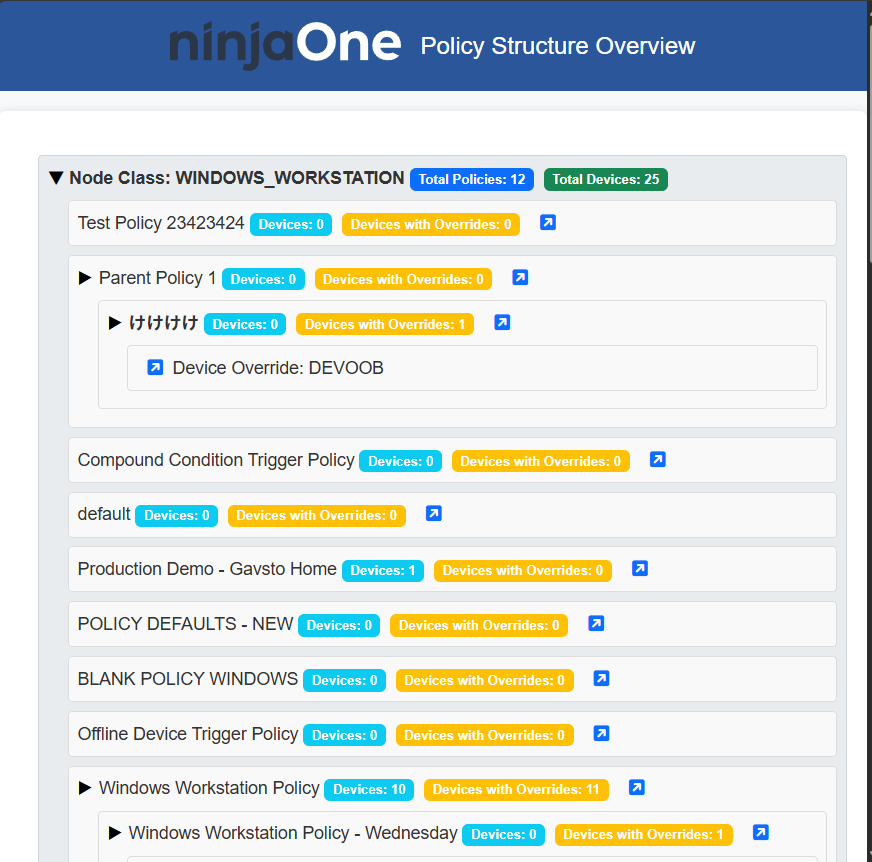
What Does It Look Like
This generates an interactive HTML report which outlines all the policy classes, all parent/child policies and any Device Overrides that have been set
🏷️ Attribution
- Author: Gavin Stone (NinjaOne)
- Attribution: Luke Whitelock (NinjaOne) for contributions to the authentication functions
- Source: Get-NinjaPolicyStructure.ps1
📋 Requirements / Prerequisites
- NinjaOne API Credentials:
NinjaOneInstance: Your NinjaOne instance URL (e.g.,app.ninjarmm.com,us2.ninjarmm.com,eu.ninjarmm.com,ca.ninjarmm.com,oc.ninjarmm.com)NinjaOneClientId: Your NinjaOne API Client IDNinjaOneClientSecret: Your NinjaOne API Client Secret
⚙️ How It Works
-
Authentication:
- The script authenticates with the NinjaOne API using the provided
NinjaOneInstance,NinjaOneClientId, andNinjaOneClientSecret. - It obtains an access token, handling token refreshes as needed.
- The script authenticates with the NinjaOne API using the provided
-
Data Retrieval:
- After successful authentication, the script queries the NinjaOne API to gather information about the policy structure.
- It retrieves details about each policy, including assigned devices and any devices with policy overrides.
-
Output Generation:
- The script generates an interactive HTML report detailing the policy hierarchy, device assignments, and policy overrides.
- This report is saved to
C:\Temp\NinjaOnePolicyOutput_<timestamp>.html.
🚀 Usage
-
Set User Variables:
- Open the script.
- Locate the user-editable variables section and set the following:
$NinjaOneInstance = 'your_ninjaone_instance'
$NinjaOneClientId = 'your_client_id'
$NinjaOneClientSecret = 'your_client_secret'
-
Run the Script:
- Open PowerShell with administrative privileges.
- Navigate to the directory containing the script.
- Execute the script:
.\Get-NinjaPolicyStructure.ps1
-
View the Output:
- An interactive HTML report will be generated and saved to
C:\Temp\NinjaOnePolicyOutput_<timestamp>.html. - Open this HTML file in a web browser to explore the policy structure interactively.
- An interactive HTML report will be generated and saved to
🛠️ Troubleshooting
-
Authentication Errors:
- Ensure that the
NinjaOneInstance,NinjaOneClientId, andNinjaOneClientSecretvariables are set correctly. - Verify that your API credentials have the necessary permissions.
- Ensure that the
-
HTML Report Not Generated:
- Confirm that the
C:\Tempdirectory exists and is writable. - Check for any errors in the console output that might indicate issues during data retrieval or file creation.
- Confirm that the
-
Incomplete Data:
- Ensure that your NinjaOne environment has policies and devices configured.
- Verify that the API credentials used have access to all necessary data.
📝 Notes
-
Security:
- Handle your API credentials with care. Avoid hardcoding them in scripts; consider using secure methods to store and retrieve them.
-
Script Maintenance:
- This script is marked as a work in progress. Regularly check the source for updates or improvements.
-
Customization:
- The script can be modified to change the output format or to include additional data as needed. Ensure you understand the script's functionality before making changes.